Best IPTV Players for Windows – Installation & Setup with Digital Lizard IPTV
Streaming has evolved far beyond the living room television. Today, your PC is a powerhouse capable of delivering 4K content, live sports, and international cinema directly to your desk. However, to unlock this potential, you need the right software and a reliable provider like digital lizard iptv to ensure your streams are high-quality and uninterrupted.
In this comprehensive guide, we will explore the top-rated IPTV players for Windows 11 and 10, provide step-by-step installation instructions, and share expert tips on how to fix IPTV buffering on Windows PC for a seamless viewing experience.
Why Choose Windows for Your IPTV Streaming?
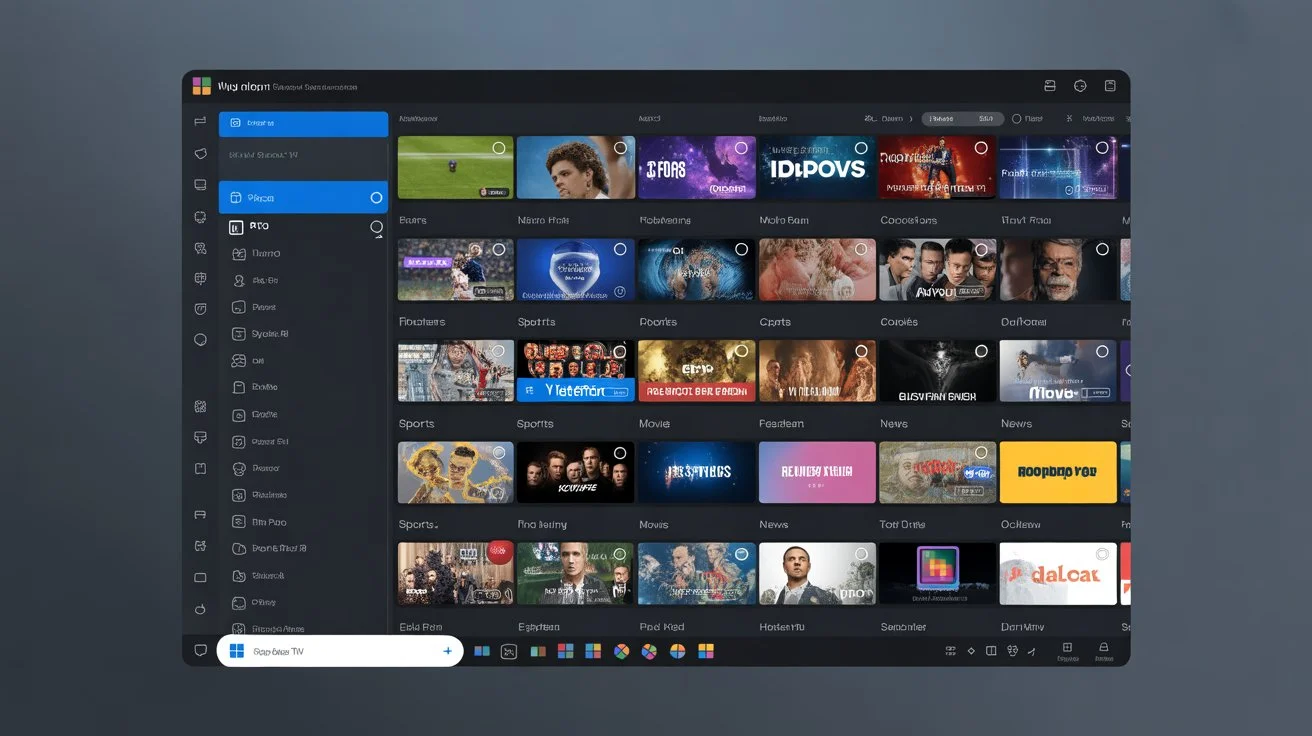
Windows remains one of the most flexible platforms for media consumption. Unlike restricted smart TV operating systems, Windows allows for deep customization, superior hardware acceleration, and the ability to multitask. By pairing a robust player with digital lizard iptv, you gain access to thousands of channels with the click of a mouse.
Top IPTV Players for Windows: Reviews & Setup
Choosing the right player is half the battle. Here are the most reliable applications currently available for Windows users.
1. IPTV Smarters Pro for Windows 11/10
IPTV Smarters Pro is arguably the most popular choice for Windows users due to its intuitive interface and support for M3U URLs and Xtream Codes API.
-
How to Install:
-
Download the official .exe file for Windows.
-
Run the installer and follow the on-screen prompts.
-
Select “Add New User” and choose the Xtream Codes API login method.
-
Enter your digital lizard iptv credentials (Username, Password, and Server URL).
-
-
Key Feature: It supports “Multi-Screen” viewing, allowing you to watch up to four channels simultaneously.
2. TiviMate for PC Setup (Using Emulator)
While TiviMate is natively an Android app, many enthusiasts prefer its premium, “cable-box” feel. To achieve a TiviMate for PC setup, you will need an Android emulator like BlueStacks or NoxPlayer.
-
Setup Steps:
-
Install BlueStacks on your Windows machine.
-
Log in to the Google Play Store within the emulator.
-
Search for and install TiviMate.
-
Input your M3U playlist link provided by your provider.
-
-
Why use it? It offers the most advanced EPG (Electronic Program Guide) management in the industry.
3. VLC Media Player IPTV Integration
VLC is the “Swiss Army Knife” of media players. It is lightweight, free, and open-source.
-
How to Integrate:
-
Open VLC and navigate to Media > Open Network Stream.
-
Paste your M3U URL into the box.
-
Click Play.
-
-
Pro Tip: Use the “Playlist” view (Ctrl+L) to quickly toggle through the channel list.
Enhancing Your Experience: Security and Performance
Streaming over the open web can sometimes lead to ISP throttling or privacy concerns. To get the most out of your subscription, consider the following optimizations.
Best VPN for IPTV Streaming on Windows
A VPN is essential for bypassing regional blocks and preventing your ISP from slowing down your connection when they detect high-bandwidth streaming. Look for providers with “WireGuard” protocol support to ensure the fastest speeds for your digital lizard iptv streams.
How to Fix IPTV Buffering on Windows PC
Buffering is the enemy of live TV. If you encounter stutters, try these steps:
-
Hardwire your connection: Use Ethernet instead of Wi-Fi whenever possible.
-
Update Graphics Drivers: Ensure your GPU is handling the video decoding efficiently.
-
Adjust Buffer Settings: In players like VLC or Kodi, you can increase the network caching size (ms) to pre-load more of the stream.
Internal Link Suggestion: [Learn more about Digital Lizard IPTV setup for windows devices here.]
Frequently Asked Questions
What is Digital Lizard IPTV and how does it work?
Digital Lizard IPTV is a premium streaming service that delivers live TV channels, movies, and series over the internet. Instead of using traditional satellite or cable, it uses your internet connection to stream media directly to your Windows PC or other compatible devices.
Can I use Digital Lizard IPTV on Smart TVs?
Yes! While this guide focuses on Windows, the service is fully compatible with Samsung and LG Smart TVs (via apps like IPTV Smarters or SET IPTV), as well as Android TV boxes.
How do I set up Digital Lizard IPTV on Firestick?
Setting up on a Firestick involves “sideloading” an app like Downloader, then installing the IPTV Smarters Pro APK. Once installed, you simply enter your login details to start streaming.
What devices are compatible with Digital Lizard IPTV?
The service is highly versatile. It works on:
-
Windows and macOS
-
Android and iOS smartphones
-
Amazon Firestick and Fire TV
-
MAG boxes and Enigma2 devices
-
Smart TVs
How to troubleshoot Digital Lizard IPTV buffering issues?
First, check your internet speed; you need at least 25 Mbps for 4K streaming. If speed isn’t the issue, try switching your VPN server or clearing the cache within your IPTV player app. Using digital lizard iptv on a dedicated player like Smarters Pro often yields better results than using a web browser.
Final Thoughts on Windows IPTV Streaming
Setting up a high-quality streaming environment on Windows is straightforward once you have the right tools. Whether you prefer the feature-rich IPTV Smarters Pro for Windows 11/10 or the simplicity of VLC Media Player IPTV integration, the key to a buffer-free experience lies in a stable connection and a premium provider.
Ready to upgrade your entertainment setup? Try Digital Lizard IPTV today to enjoy seamless streaming, crystal-clear HD channels, and an unparalleled library of VOD content.
Internal Link Suggestion: [Explore Digital Lizard IPTV subscription plans for the best value.]
Conclusion
By following the steps outlined above, you can transform your PC into the ultimate media hub. Don’t settle for laggy, low-quality streams. Invest in a proper player, secure your connection with a VPN, and enjoy the world-class service offered by digital lizard iptv.
[Get started with your Digital Lizard IPTV subscription now!]