
How to Set Up IPTV on MAG Box (Simple Setup Guide)
Setting up IPTV on a MAG Box is one of the easiest ways to enjoy live TV, movies, sports, and on-demand content through a reliable streaming device. If you’re looking for a straightforward way to start streaming, this guide will walk you through every step.
Whether you’re new to IPTV or have recently purchased a MAG device, learning how to configure your service correctly is important for smooth performance. Many users choose digital lizard iptv because it offers a simple activation process and compatibility with popular IPTV devices.
In this beginner-friendly tutorial, you’ll learn everything you need to know about MAG Box IPTV setup, device configuration, troubleshooting, and optimization tips.
What Is a MAG Box?
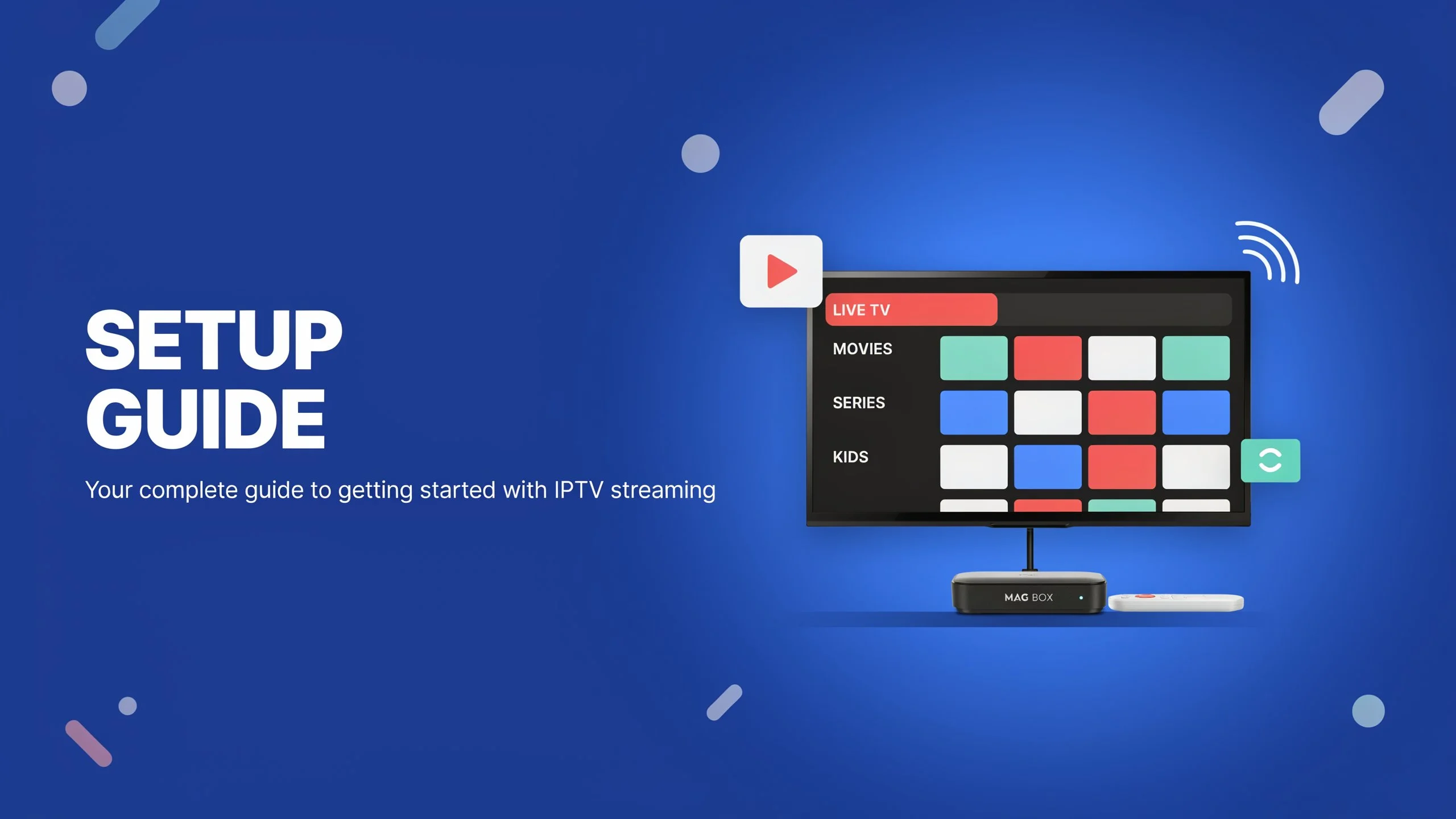
A MAG Box is a dedicated IPTV streaming device developed to provide a seamless television viewing experience through internet-based services. Unlike traditional cable systems, MAG devices allow users to access IPTV content using a portal URL provided by their IPTV provider.
Popular MAG models include:
- MAG 322
- MAG 324
- MAG 420
- MAG 524
- MAG 540
These devices are widely used because they are:
- Easy to configure
- Stable and reliable
- Designed specifically for IPTV
- Compatible with most IPTV providers
- Beginner-friendly
What You Need Before Starting
Before beginning your MAG device setup guide, make sure you have the following:
- A MAG Box connected to your TV
- Stable internet connection
- Ethernet cable or Wi-Fi access
- IPTV subscription details
- Portal URL from your IPTV provider
- MAC address of your MAG device
You can find the MAC address on the label underneath the device or within the settings menu.
How to Find Your MAG Box MAC Address
Your IPTV provider will often require your device MAC address for activation.
Steps to Locate the MAC Address
- Turn on your MAG Box.
- Open Settings.
- Select System Information.
- Locate the MAC address displayed on the screen.
The MAC address typically begins with:
00:1A:79Save this information because you’ll need it during activation.
MAG Box IPTV Setup: Step-by-Step Instructions
Setting up IPTV on MAG Box only takes a few minutes when you have the correct portal URL.
Step 1: Open System Settings
- Turn on the MAG Box.
- From the home screen, select Settings.
- Navigate to System Settings.
Step 2: Access Servers Menu
Inside System Settings:
- Select Servers
- Choose Portals
You will usually see:
- Portal 1 Name
- Portal 1 URL
Step 3: Enter IPTV Portal Information
Enter the information provided by your IPTV service.
Example:
Portal 1 Name
Digital Lizard IPTVPortal 1 URL
Provider Portal URLMake sure the URL is entered exactly as provided.
Step 4: Save Settings
After entering the portal information:
- Select Save
- Press OK
- Exit the settings menu
Step 5: Restart the Device
Reboot your MAG Box.
When the device restarts:
- The IPTV portal loads automatically.
- Your channels and content should appear.
- Login is usually completed through MAC address activation.
Congratulations! Your IPTV on MAG Box setup is now complete.
How to Optimize Streaming Performance
A successful setup is only part of the process. Optimizing your device ensures better streaming quality.
Use a Wired Connection
Ethernet connections provide:
- Faster speeds
- Lower latency
- More stable streams
- Reduced buffering
Keep Firmware Updated
Regular firmware updates improve:
- Security
- Compatibility
- Device performance
Check periodically for available updates.
Restart Your Device Occasionally
Restarting helps:
- Clear temporary memory
- Improve responsiveness
- Resolve minor streaming issues
Maintain Strong Internet Speeds
For the best experience:
- HD streaming: 10 Mbps minimum
- Full HD streaming: 20 Mbps recommended
- 4K streaming: 30 Mbps or higher
Common MAG Box IPTV Setup Issues
Even with a correct configuration, occasional problems can occur.
Portal Cannot Be Loaded
Possible causes:
- Incorrect portal URL
- Internet connection issues
- Temporary server maintenance
Solution:
- Verify portal information.
- Restart your router.
- Contact your IPTV provider if needed.
Channels Not Loading
Possible causes:
- Subscription not activated
- MAC address not registered
- Network interruptions
Solution:
- Confirm activation status.
- Verify MAC registration.
- Reboot the device.
Buffering During Streaming
Possible causes:
- Slow internet speeds
- Weak Wi-Fi signal
- Network congestion
Solution:
- Switch to Ethernet.
- Restart networking equipment.
- Test internet speed.
Smart TV IPTV Setup vs MAG Box Setup
Many users wonder whether to use a Smart TV application or a dedicated MAG device.
| Feature | MAG Box | Smart TV App |
|---|---|---|
| IPTV Optimization | Excellent | Good |
| Stability | High | Medium |
| Ease of Setup | Easy | Easy |
| Streaming Performance | Excellent | Depends on TV |
| Device Updates | Regular | Depends on Manufacturer |
For users who primarily stream IPTV content, MAG devices often provide a more consistent experience.
Benefits of Using MAG Devices for IPTV
There are several reasons why IPTV users continue to choose MAG devices.
Dedicated IPTV Platform
MAG devices are specifically designed for IPTV streaming.
Simple User Interface
The menu system is straightforward and beginner-friendly.
Reliable Performance
Users enjoy stable playback with minimal interruptions.
Wide Provider Compatibility
Most IPTV services support MAG device activation through portal configuration.
Internal Linking Suggestions
Frequently Asked Questions
What is Digital Lizard IPTV and how does it work?
Digital Lizard IPTV is an IPTV streaming service that delivers television content through an internet connection rather than traditional cable or satellite systems. Users can access channels and on-demand content through compatible devices.
Can I use Digital Lizard IPTV on Smart TVs?
Yes. Digital Lizard IPTV can be used on many Smart TVs through compatible IPTV applications, depending on device support and configuration requirements.
How do I set up Digital Lizard IPTV on Firestick?
Most Firestick setups involve installing a compatible IPTV player, entering your subscription details, and connecting to the IPTV service using the provided credentials.
What devices are compatible with Digital Lizard IPTV?
Common compatible devices include:
- MAG Boxes
- Android TV devices
- Fire TV Stick
- Smart TVs
- Smartphones
- Tablets
- Streaming boxes
How to troubleshoot Digital Lizard IPTV buffering issues?
To reduce buffering:
- Use a wired connection
- Improve internet speed
- Restart networking equipment
- Update device software
- Close unnecessary background applications
Do I need technical knowledge to configure IPTV on a MAG Box?
No. Most MAG Box IPTV setup procedures are beginner-friendly and require only basic device settings and portal information.
Conclusion
Learning how to set up IPTV on a MAG Box is a simple process that can be completed in just a few minutes. By entering the correct portal information, activating your device, and following a few optimization tips, you’ll be ready to enjoy smooth streaming on your favorite channels and content.
Whether you’re new to IPTV or upgrading your current setup, MAG devices remain one of the most reliable solutions available. If you’re looking for an easy streaming experience, consider trying Digital Lizard IPTV and enjoy seamless entertainment across compatible devices.