How to Set Up IPTV on Firestick (Step-by-Step Guide) with Digital Lizard IPTV
Introduction
Streaming has completely changed the way people watch TV, and IPTV is now one of the most popular alternatives to traditional cable services. If you’re using an Amazon Firestick, you’re already on the right device to enjoy smooth and flexible streaming.
In this guide, you’ll learn how to set up IPTV on Firestick step by step, even if you’re a complete beginner. We’ll explain everything clearly, from preparing your Firestick to installing the IPTV app and logging in.
This tutorial is designed for users who want a simple, reliable solution using digital lizard iptv, with practical tips to avoid common setup mistakes and improve streaming quality.
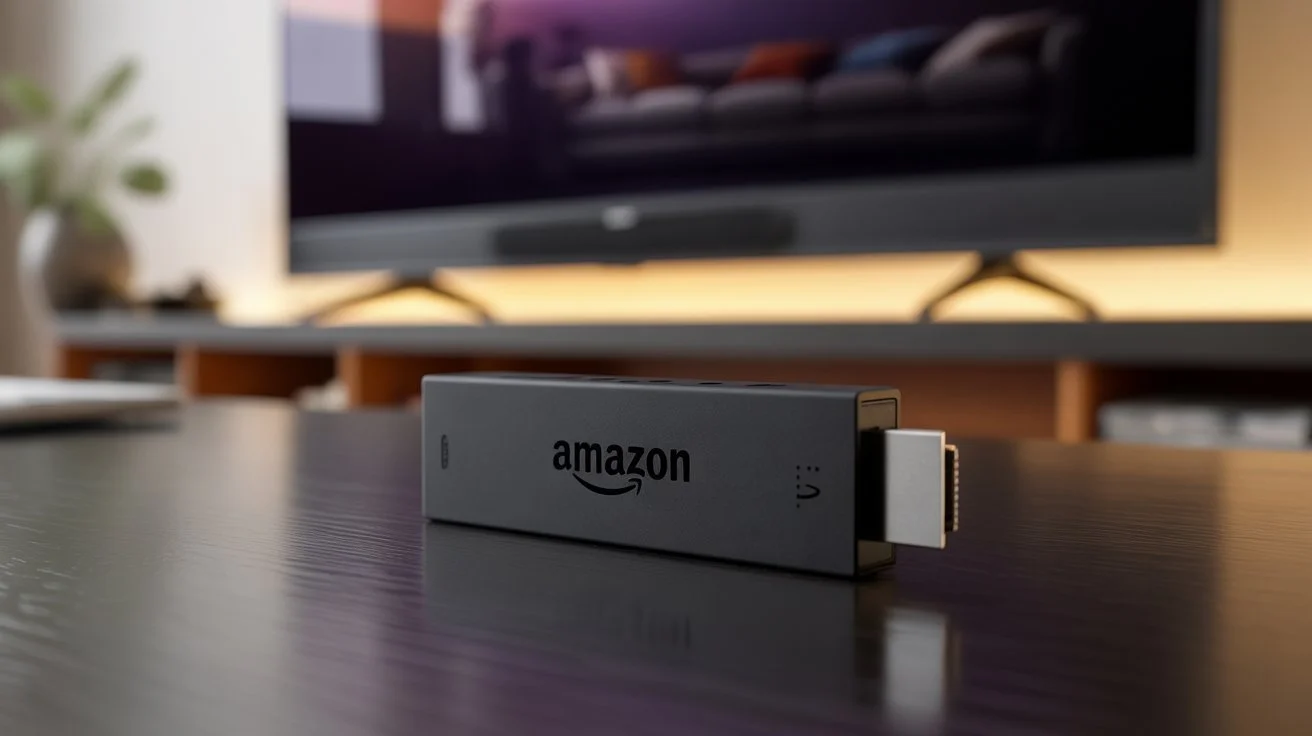
What You Need Before Setting Up IPTV on Firestick
Before starting the IPTV Firestick setup, make sure you have the following ready:
An Amazon Firestick or Fire TV device
A stable internet connection (at least 10 Mbps recommended)
An active IPTV subscription
Your IPTV login details (username, password, and server URL)
A TV connected to your Firestick
Once these basics are in place, you’re ready to move on to the installation process.
Enable Apps from Unknown Sources on Firestick
To install IPTV apps on Firestick, you’ll first need to adjust a simple setting.
Steps to Enable Unknown Sources
From the Firestick home screen, go to Settings
Select My Fire TV
Click Developer Options
Enable:
ADB Debugging
Apps from Unknown Sources
This step is essential for installing IPTV apps like IPTV Smarters.
How to Install IPTV on Firestick Using Downloader
The easiest way to install IPTV apps is through the Downloader app, which is free and safe to use.
Step 1: Install Downloader
Open the Amazon App Store
Search for Downloader
Download and install the app
Step 2: Allow Downloader Permissions
Open Downloader
Allow requested permissions
Confirm access to files
This tool will help you install IPTV Smarters on Firestick quickly.
IPTV Smarters Firestick Setup (Recommended Method)
IPTV Smarters is one of the most popular IPTV apps for beginners because it’s user-friendly and powerful.
Step 1: Download IPTV Smarters
Open Downloader
Enter the official IPTV Smarters download link
Click Go
Install the app when prompted
Step 2: Open IPTV Smarters
Launch the app from your Firestick apps list
Choose Login with Xtream Codes API
How to Log In to IPTV Smarters
This is where you connect your IPTV subscription to the app.
Enter the Following Details:
Any name (for example: Digital Lizard IPTV)
Username (provided by your IPTV service)
Password
Server URL
After entering the details, click Add User and wait a few seconds for the content to load.
Once completed, your Firestick IPTV setup is almost done.
Set Up IPTV on Firestick Easily: Best Settings
To enjoy the best experience, apply these simple IPTV Firestick setup tips:
Set video player to hardware decoding
Use Ethernet adapter if possible for stability
Close unused background apps
Restart Firestick after setup
These small adjustments can significantly improve performance and reduce buffering.
Common IPTV Firestick Setup Tips for Beginners
If you’re new to IPTV, keep these tips in mind:
Always double-check login details
Avoid public or unstable Wi-Fi networks
Restart your router weekly
Keep your IPTV app updated
Using a trusted provider like digital lizard iptv also helps ensure better uptime and smoother streams.
Internal Linking Suggestions
To improve navigation and SEO, consider linking this article to:
Learn more about Digital Lizard IPTV setup → internal setup guide
Explore Digital Lizard IPTV subscription plans → pricing page
Frequently Asked Questions
H2: Frequently Asked Questions
H3: What is Digital Lizard IPTV and how does it work?
Digital lizard iptv is a streaming service that delivers live TV channels, movies, and series over the internet instead of traditional cable or satellite systems.
H3: Can I use Digital Lizard IPTV on Smart TVs?
Yes, Digital Lizard IPTV works on Smart TVs, Android devices, Firestick, tablets, and more, depending on the app used.
H3: How do I set up Digital Lizard IPTV on Firestick?
You can set it up by installing IPTV Smarters on Firestick, entering your Digital Lizard IPTV login details, and adjusting basic settings for best performance.
H3: What devices are compatible with Digital Lizard IPTV?
Compatible devices include:
Amazon Firestick
Android TV
Smart TVs
Smartphones
Tablets
Windows and Mac computers
H3: How to troubleshoot Digital Lizard IPTV buffering issues?
To reduce buffering:
Check your internet speed
Restart your device
Use wired internet if possible
Lower video quality
Ensure your subscription is active
Conclusion
Setting up IPTV on Firestick doesn’t have to be complicated. By following this step-by-step guide, even beginners can complete the installation in just a few minutes. From installing the app to optimizing settings, everything is designed to make your experience smooth and stress-free.
If you’re looking for a reliable and user-friendly streaming solution, Digital Lizard IPTV offers a simple way to enjoy live TV and on-demand content across multiple devices.
 Try Digital Lizard IPTV today and enjoy seamless streaming on your Firestick with confidence.